Connect Gallery Collection
Pipe a Framer CMS Gallery field into the Big Hero gallery with a single Code Override. Every photo you add to the Collection shows up in the scroll track — no per-image hand-pasting.
How it works
Framer's ControlType.CollectionReference is a Plugin-only control
— it doesn't appear in code-component property controls. The bridge we use
instead: a Code Override on your CMS Gallery field's rendered
Image emits a hidden
<div data-bighero="gallery" data-imageurl="…"> for every photo.
The Big Hero Gallery component (Source: CMS) listens for these via
MutationObserver and reads the URLs into its scroll track.
Setup (4 steps)
-
Create a Collection with a Gallery field
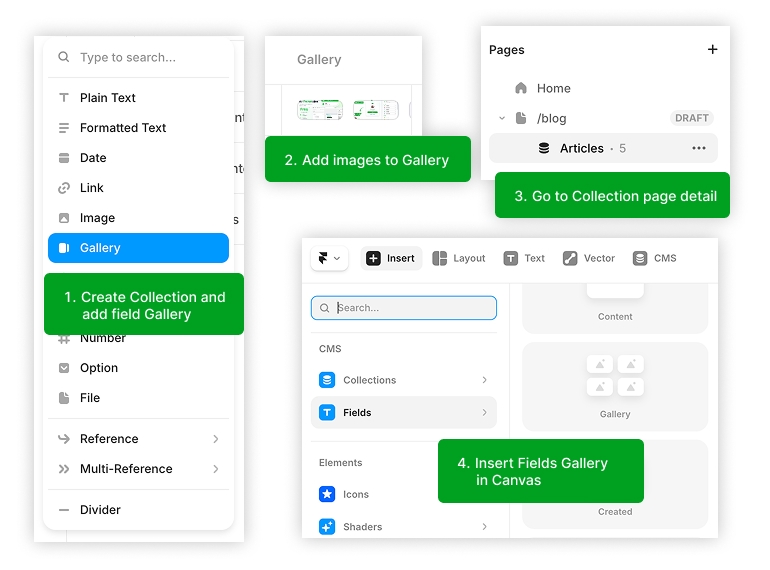
Add a "Gallery" field to your Collection, upload images, open the Collection detail page, then insert Fields → Gallery onto the canvas.
Framer's Gallery field type is a built-in multi-image field — one field holds many photos per item. When you drop the Gallery field on the Collection detail page, Framer renders one Image element per uploaded photo. -
Add a Code Override file
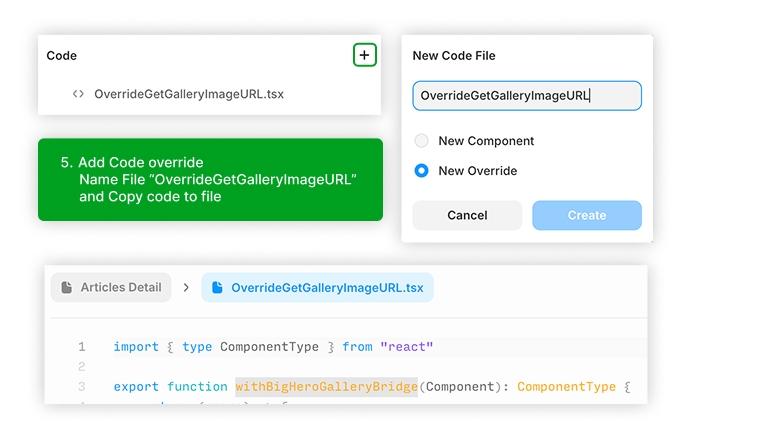
Assets → Code → + → New Override, name it
OverrideGetGalleryImageURL, then paste the snippet below.import { type ComponentType } from "react" export function withBigHeroGalleryBridge(_: ComponentType): ComponentType { return (props) => { // Image elements in Framer carry the URL on props.background.src // (or props.src for plain image instances). Field name in CMS // doesn't matter — the override only sees the rendered Image. const url = (props as any)?.background?.src ?? (props as any)?.src return url ? ( <div hidden aria-hidden="true" data-bighero="gallery" data-imageurl={url} /> ) : null } }Note: the override returns only the hidden bridge div and drops the visible image — that's intentional. The visible gallery you'll see on the page is the Big Hero component (Step 4), not the Collection's list rendering. -
Apply the override to the Gallery's Image
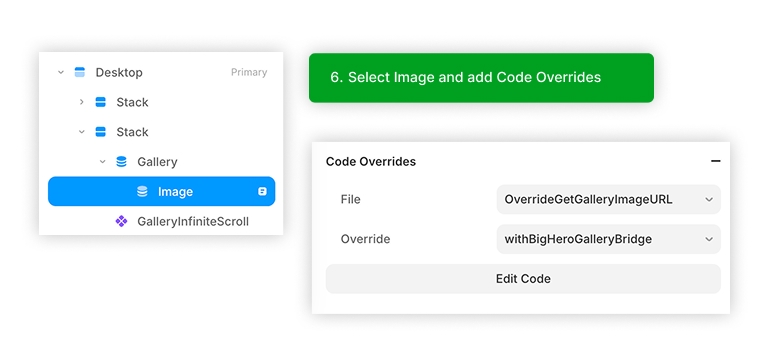
Select the Image inside the inserted Gallery field, then in Code Overrides pick File =
Each item in the Gallery field now emits a hidden bridge node into the DOM. The visible images will vanish from the canvas — expected. The next step turns them back on through the Big Hero Gallery component.OverrideGetGalleryImageURLand Override =withBigHeroGalleryBridge. -
Switch the Big Hero Gallery to CMS mode
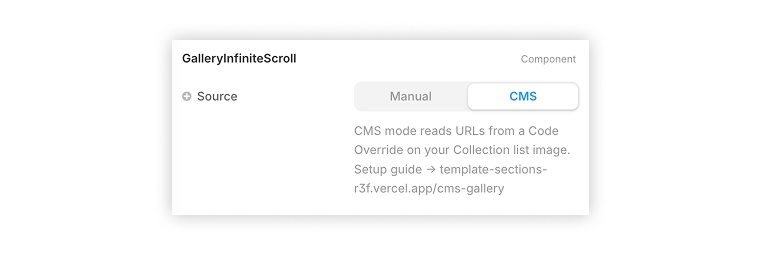
Select the Big Hero Gallery component on the same page and flip Source: CMS in the properties panel.
The gallery immediately reads the bridge nodes and scrolls through every photo in the Collection's Gallery field. Add or remove items in the CMS and the gallery updates live — MutationObserver keeps the bridge in sync.
Notes & gotchas
-
Same page only. The override divs and the Gallery component
must live on the same Framer page (or at least the same rendered DOM tree).
The Gallery scans
document.body— cross-page bindings won't work. - Empty state. If the bridge yields zero URLs (override not applied yet, Collection empty, etc.), the gallery falls back to its 6 built-in sample images so the canvas is never blank during setup.
-
Reactive to CMS changes. A MutationObserver watches for
data-imageurlchanges, so filter / sort / add / remove flows update the gallery without a page reload. -
Multiple galleries on one page share the same
[data-bighero='gallery']selector — they'll show identical image lists. Reach out if you need scoped bindings; we can add agroupprop in a future release.
What's next
v1 of the Big Hero plugin ships the Gallery component only. Three additional R3F variants — a morphing Liquid Blob, a cursor-reactive Particle Field, and a Flying 3D hero with marquee modes — are already in the bundle as code, and will land as insertable components in a future release once they pass another polish pass.